Shared Assets Repository
The Shared Assets Repository is a window that lets you browse and download shared assets published on the WEAVR Manager — ready-made models and packages (tools, props, environments, etc.) that you can reuse across your procedures instead of importing them by hand.
Open it from WEAVR > Utilities > Shared Assets Repository.
List view
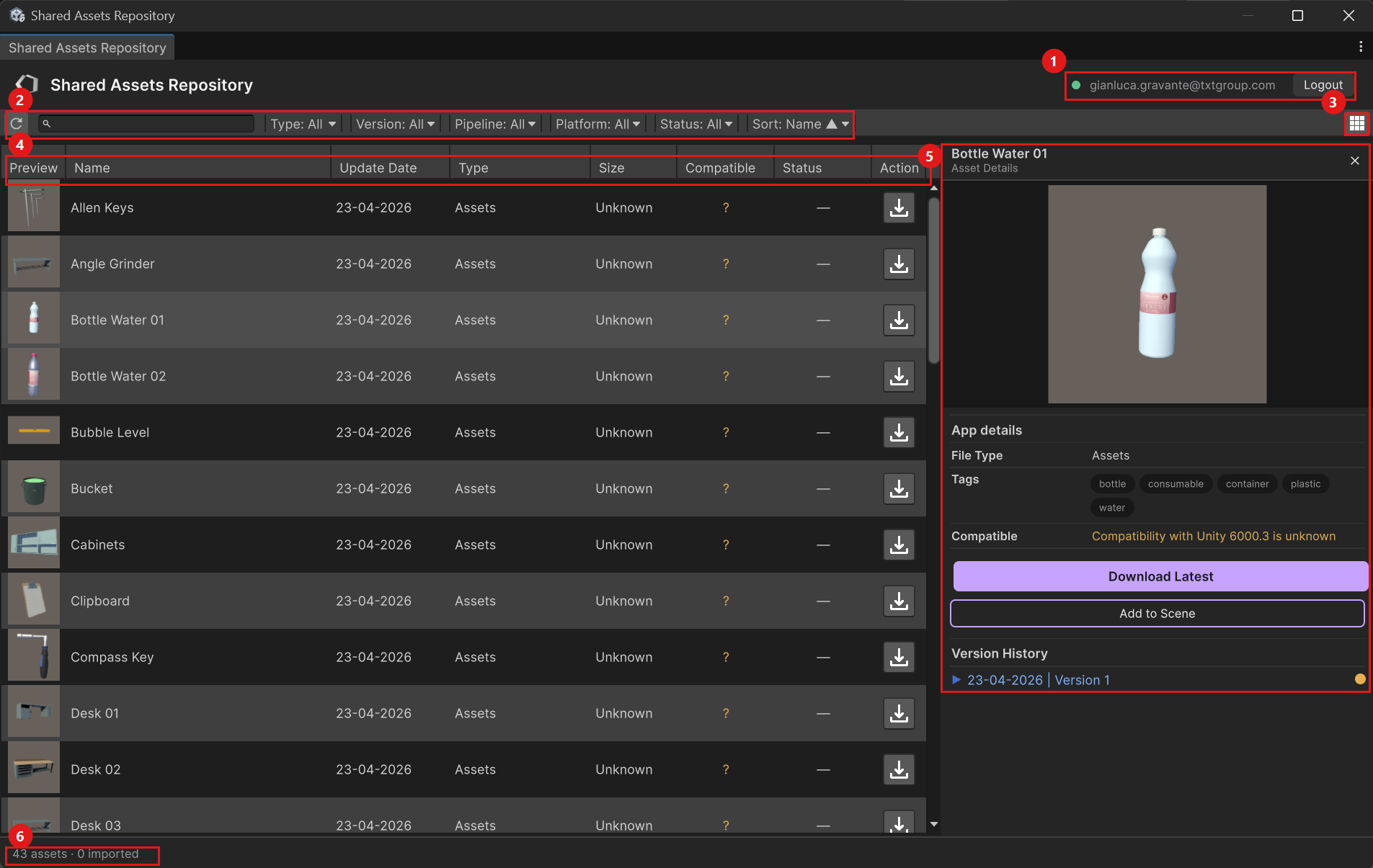
- Account — the account you are signed in with, and a Logout button.
- Toolbar — find and filter the assets:
- Refresh — reload the list from the WEAVR Manager.
- Search — filter the assets by name.
- Type — filter by asset type.
- Version — filter by version.
- Pipeline — filter by render pipeline (for example URP).
- Platform — filter by target platform.
- Status — filter by status (for example already imported, update available).
- Sort — order the assets by the chosen criterion, ascending or descending.
- Grid / List — switch between the list view and the grid view.
- Asset columns — each asset shows its Preview, Name, Update Date, Type, Size, Compatible state, Status and an Action (download) button.
- Asset Details — the details panel for the selected asset (see Asset details).
- Footer — the total number of assets and how many are already imported.
The Compatible column shows whether the asset works with your current project (pipeline / platform / Unity version); a ? means the compatibility is unknown.
Grid view
The grid view shows the assets as large preview cards. Use the size slider to make the cards bigger or smaller.
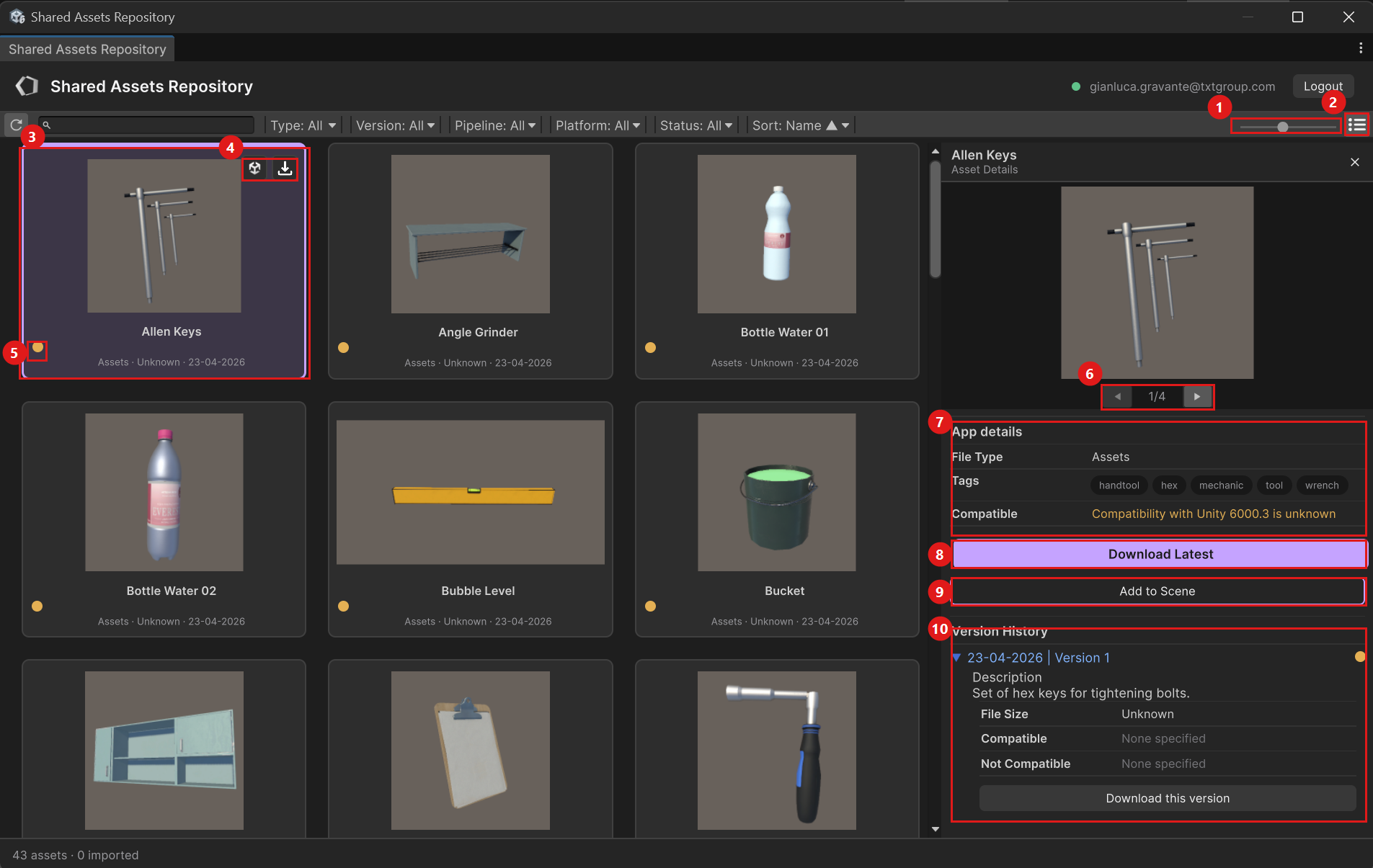
- Size slider — change the size of the preview cards.
- List / Grid — switch back to the list view.
- Asset card — the preview, the asset name and its metadata (type, size, update date).
- Card actions — hover a card to reveal Add to Scene and Download buttons.
- Status dot — a colored dot showing the asset status (for example not yet imported).
Asset details
Selecting an asset opens the Asset Details panel on the right, the same in both views.
- Preview — a preview of the asset; when it has more than one image, use the ◄ / ► arrows to browse them.
- App details — the File Type, the Tags and the Compatible state of the asset.
- Download Latest — download and import the most recent version of the asset into your project.
- Add to Scene — download (if needed) and place the asset directly into the current scene.
- Version History — the list of published versions; expand a version to see its Description, File Size, the Unity versions it is Compatible / Not Compatible with, and a Download this version button to import that specific version.
The Shared Assets Repository connects to the WEAVR Manager, so it requires you to be signed in. See Login & License.