Login & License
WEAVR Creator uses your WEAVR Manager account for two things:
- Signing in — so the tools that talk to the WEAVR Manager (uploading a procedure, the Shared Assets Repository, WEAVR AI and DAISY) can work.
- Getting a license — WEAVR needs a valid license to be used; the license is issued when you sign in, and can also be loaded from an offline file.
Both are handled by the same sign-in window, and your login state is always visible in the Unity toolbar.
Login control in the toolbar
On the right side of the Unity main toolbar (next to the Play/Stop buttons) there is a grey WEAVR logo button that opens the WEAVR Dashboard, and immediately to its right the WEAVR login control:

- When you are not signed in, it shows a Login button.
- When you are signed in, it shows your account, with a menu that lets you open About WEAVR, Refresh License, and Logout.
The control also shows the connection state — for example when you are offline, it indicates how many days the license is still valid without internet.
About WEAVR
The About WEAVR window is the dashboard for your license and account. Open it from WEAVR > About, or from the About WEAVR… entry in the toolbar login menu.
This window replaces the old WEAVR > Intro page.
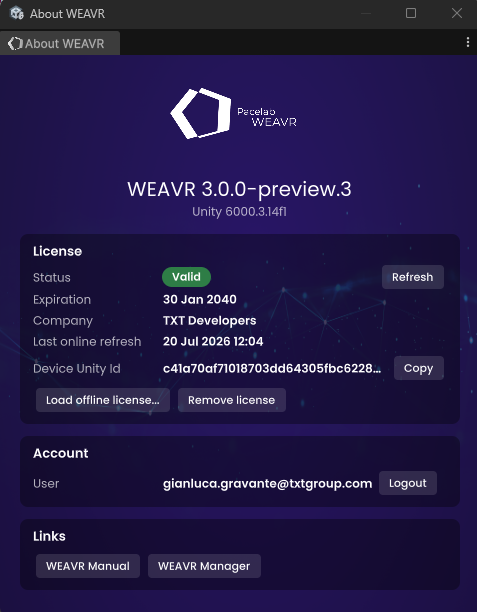
At the top it shows the installed WEAVR version and the Unity version. Below are three sections:
License
| Field / Button | Function |
|---|---|
| Status | Whether the license is valid. |
| Expiration | The date the license expires. |
| Company | The company the license is registered to. |
| Last online refresh | When the license was last refreshed online. |
| Device Unity Id | The id of this device (used to issue an offline license). Copy puts it on the clipboard. |
| Refresh | Refreshes the license online (renewing the offline grace period). |
| Load offline license… | Loads an offline license file issued for this device. |
| Remove license | Removes the current license from this machine. |
Account
| Field / Button | Function |
|---|---|
| User | The signed-in WEAVR Manager account. |
| Logout | Signs out and clears the saved credentials. |
Links
| Button | Function |
|---|---|
| WEAVR Manual | Opens this documentation. |
| WEAVR Manager | Opens the WEAVR Manager web app. |
Signing in
Clicking Login (or performing an action that requires an account) opens the sign-in window:
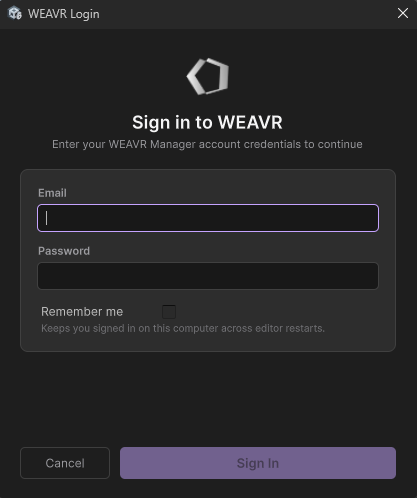
| Field | Function |
|---|---|
| The email of your WEAVR Manager account. | |
| Password | The password of your WEAVR Manager account. |
| Remember me | Keeps you signed in on this computer across editor restarts, so the next session signs in automatically. |
Press Sign In to continue. If there is no internet connection a warning is shown, because signing in requires the WEAVR Manager to be reachable.
Activating a license
When a license must be activated or re-acquired, the window opens in Activate WEAVR mode.
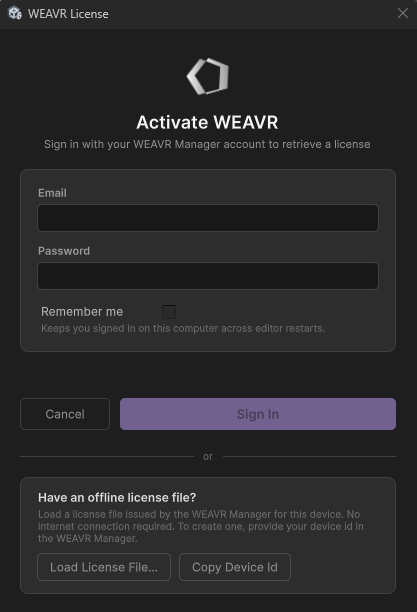
It offers two ways to get a license:
- Sign in online — enter your WEAVR Manager account (as above) to retrieve a license automatically.
- Load an offline license file — for machines without internet. Use Load License File… to select a license file issued by the WEAVR Manager for this device. To create one, provide your device id to the WEAVR Manager: the Copy Device Id button copies it to the clipboard.
An online sign-in also renews the license and its offline grace period, so the Creator keeps working for a number of days without internet. When the grace period is running low, sign in again (or use Refresh License) to renew it.
Refreshing the license and logging out
From the toolbar login menu you can:
- Refresh License — force an online license refresh, renewing the offline grace period. It requires an internet connection.
- Logout — sign out and clear the saved credentials from this computer.
What requires signing in
You can build procedures and work locally without signing in, but the features that exchange data with the WEAVR Manager need a valid login (and license):
- Upload / Build to Manager — publishing a procedure to the WEAVR Manager.
- Shared Assets Repository — browsing and downloading shared assets.
- WEAVR AI and DAISY — the AI assistants.
If you try to use one of these while signed out, WEAVR opens the sign-in window automatically.