Mixed Reality
To setup a scene for HoloLens 2 follow these steps:
-
Switch to Universal Windows Platform and apply the settings below.
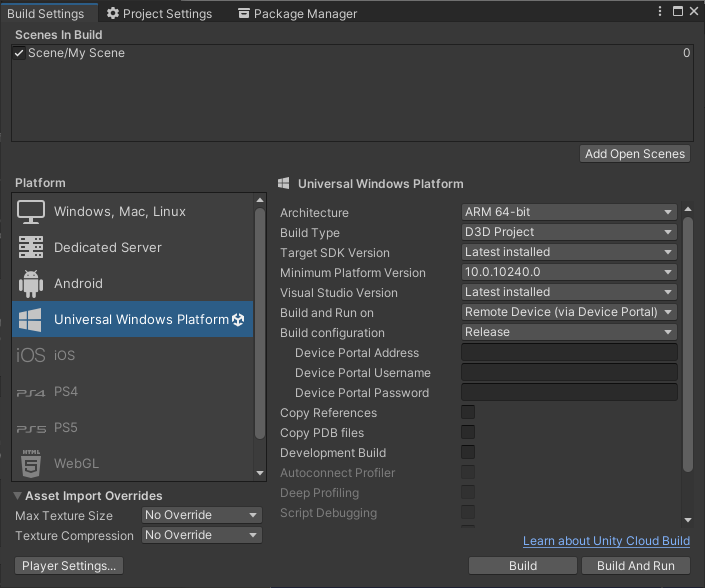
After switching to UWP, the Mixed Reality Toolkit components are installed. In Unity, a new Mixed Reality menu is added. Then the MRTK Project Configurator is displayed.
-
If the MRTK Project Configurator is not displayed automatically, you can manually open it in the menu item Mixed Reality > Toolkit > Utilities > Configure Project for MRTK.
-
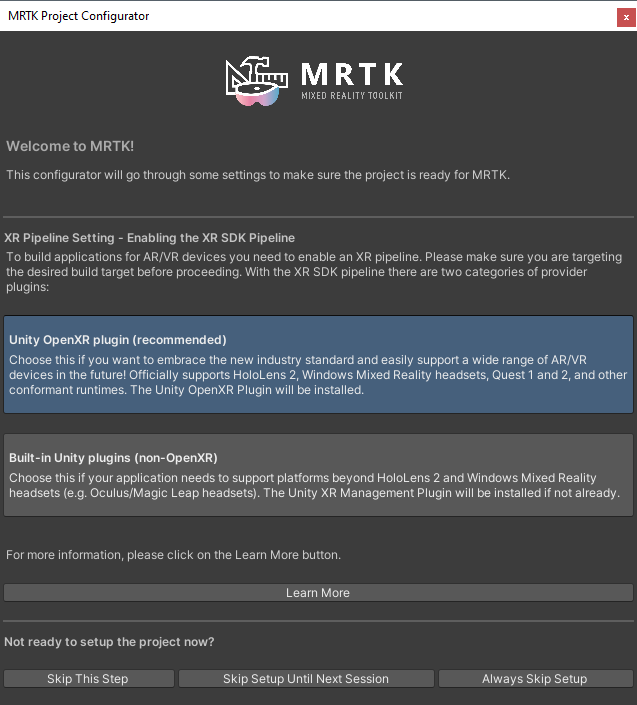
In the MRTK Project Configurator, select Unity OpenXR plugin.
-
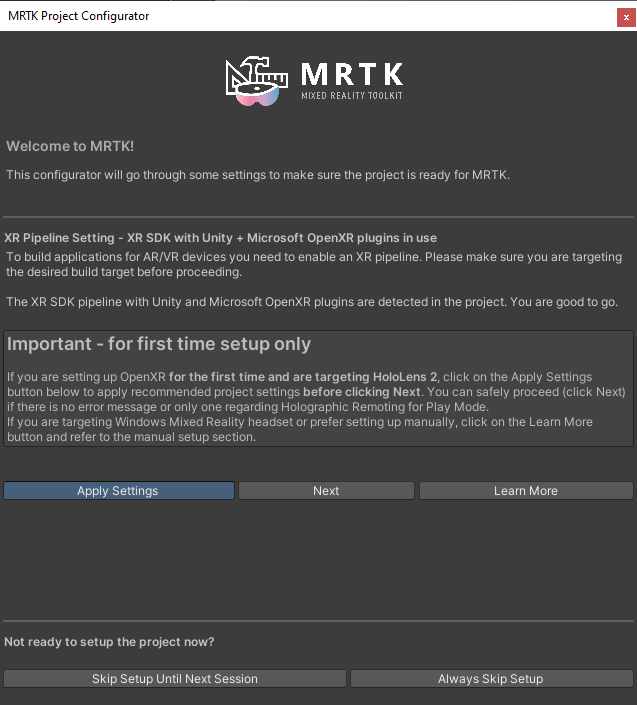
If the following window is displayed, click on the Apply Settings button.
-
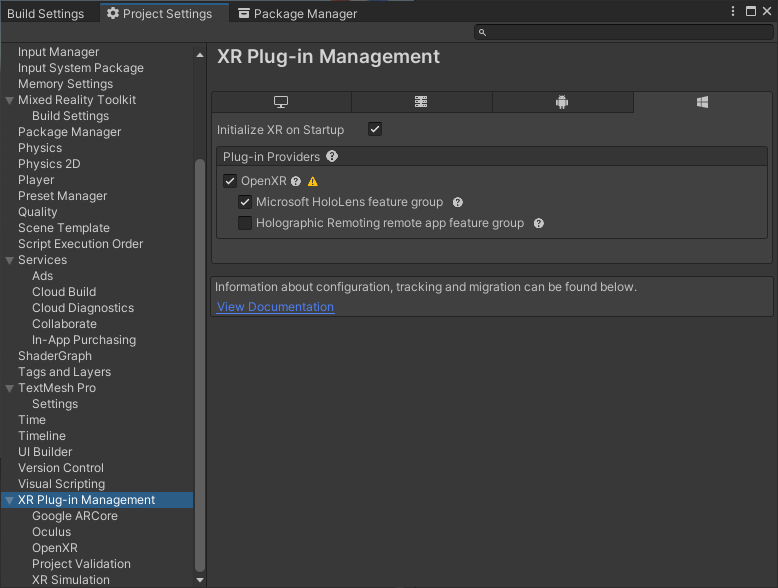
Now go to Project Settings > XR Plug-In Management and set as follows.
-
In Project Validation fix all the issues that may appear, with the FIX ALL button.
-
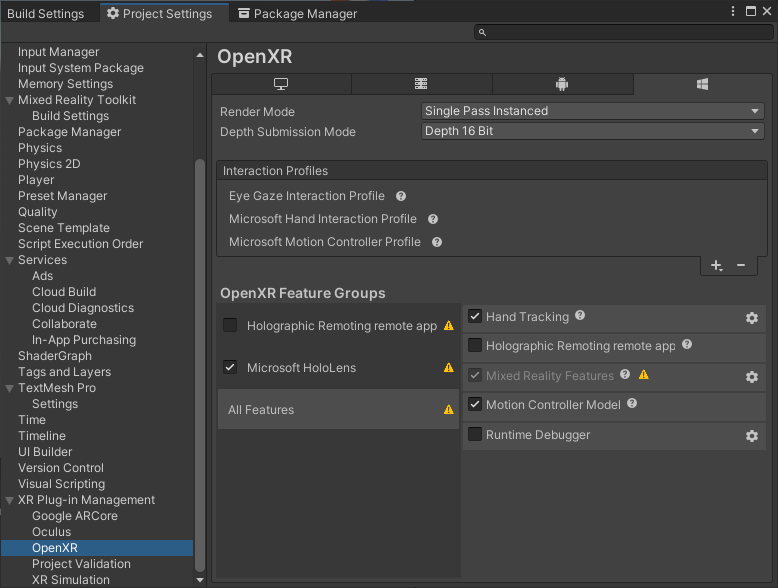
Go to OpenXR and apply the following settings.
-
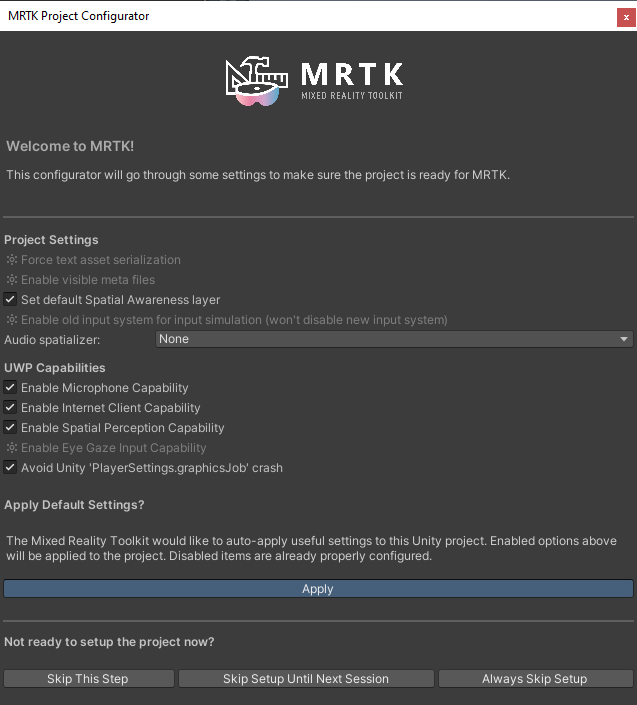
In the MRTK Project Configurator, apply the default settings.
-
Save and restart Unity.
-
Setup the scene with WEAVR.
-
Disable the PlayerRIG from the WEAVR game object.
-
Add the following MRTK objects to the scene:
MixedRealityToolkitMixedRealityPlayspaceMixedRealitySceneContent
WEAVR provides limited support for HoloLens.