DAISY — Domain Artificial Intelligence System
DAISY is a virtual assistant that knows each procedure in depth. It runs inside the WEAVR Player during the execution of a procedure and guides the trainee step by step, like an expert would. DAISY has domain knowledge at the procedure level, so it can provide contextual, detailed support for every step.
Integration with other modules
- Procedure Runner — DAISY reads from the Procedure Runner the information needed to determine the up-to-date context of the current step, so it always knows exactly where the user is in the flow.
- Score System — through the Score System, DAISY detects the errors committed by the user and obtains a detailed description, which lets it offer targeted support.
Setting up DAISY in the Creator
During the creation of a procedure, DAISY is added to the scene through the Daisy Setup Action, which also configures its behaviour (Passive, Reactive, Proactive or Adaptive), the spawn point, the known objects and the instructional videos. A second action, the Daisy Speech Action, makes DAISY play predefined speech lines.
See Daisy Actions for the full description of both actions, the behaviour modes and all their fields.
Daisy Context
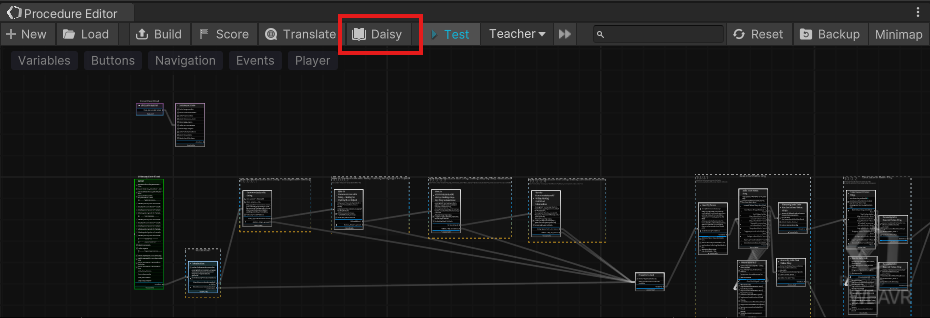
To improve DAISY's performance you can provide supporting documentation in text form through the Daisy Context window. Open it from the Daisy button in the Procedure Editor toolbar.
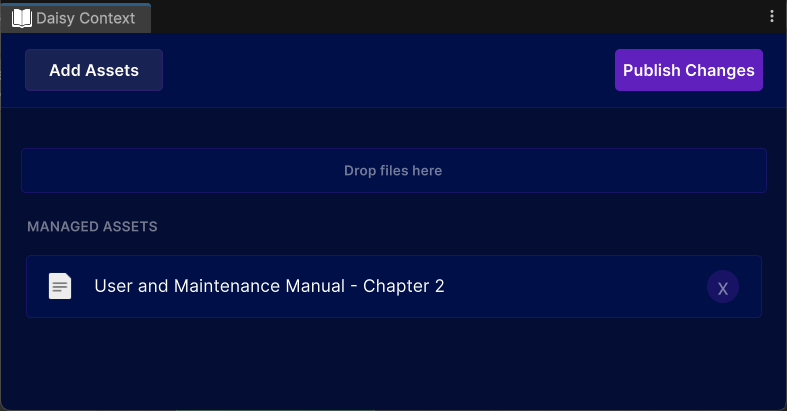
Drop your files in the window, then click Publish Changes to send the supporting documentation to the server. DAISY will use it to guide users during the execution of the procedure.
Settings
DAISY can be tested already during procedure creation. Its configuration is managed in the WEAVR Settings window, both in the Creator and in the Player.
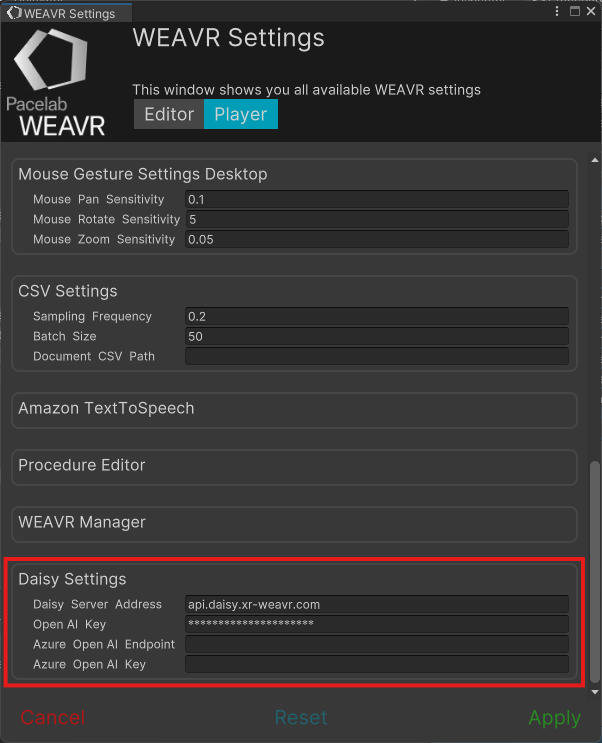
| Setting | Required | Description |
|---|---|---|
| Daisy Server Address | Yes | IP address or URL of the backend service. |
| OpenAI Key | No | Optional API key. |
| Azure OpenAI Endpoint | No | Optional Azure endpoint. |
| Azure OpenAI Key | No | Optional Azure key. |
DAISY can also be used on-premises: leave the optional fields empty. In that mode you need both the "Daisy" backend service and an "Inference Service", and a local LLM runner (such as Ollama).
Features
-
Thanks to speech recognition and synthesis, DAISY can respond when the user talks to it.
-
It intervenes autonomously when it detects an error or when the user takes too long to complete a step.
-
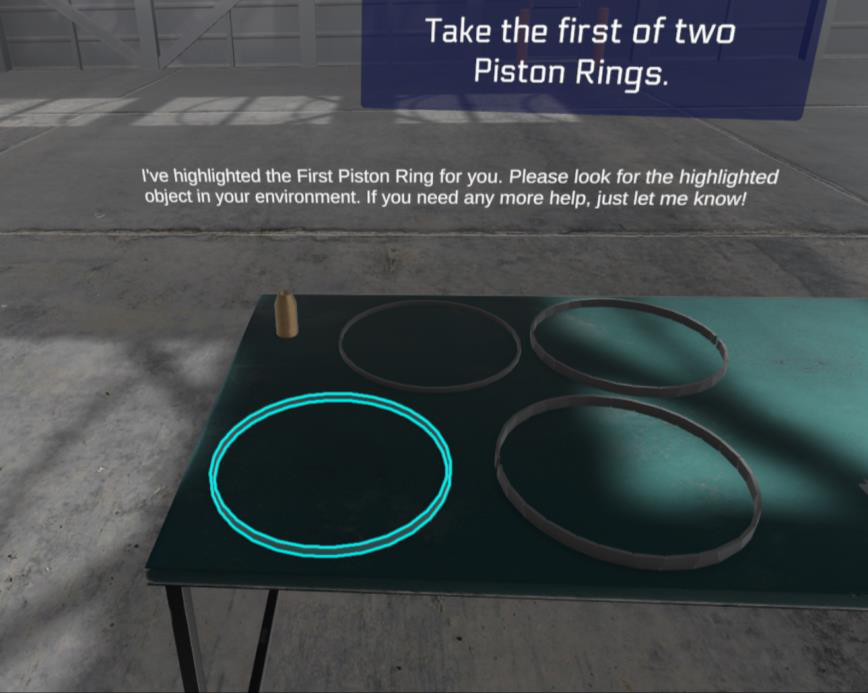
It highlights objects in the scene.
-
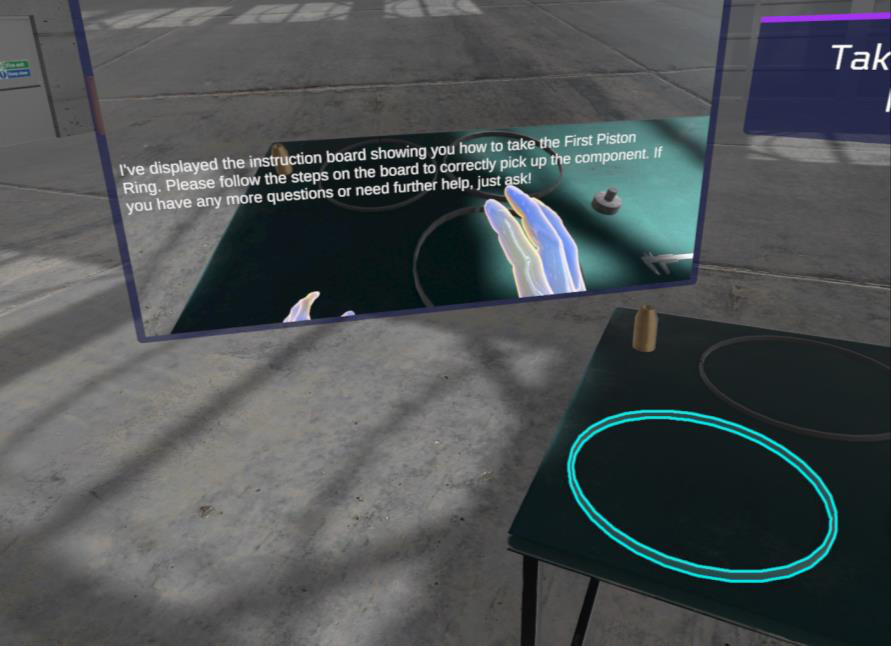
It shows how to perform an action by playing the instructional videos defined during procedure creation, on a board inside the environment.
DAISY in the scene
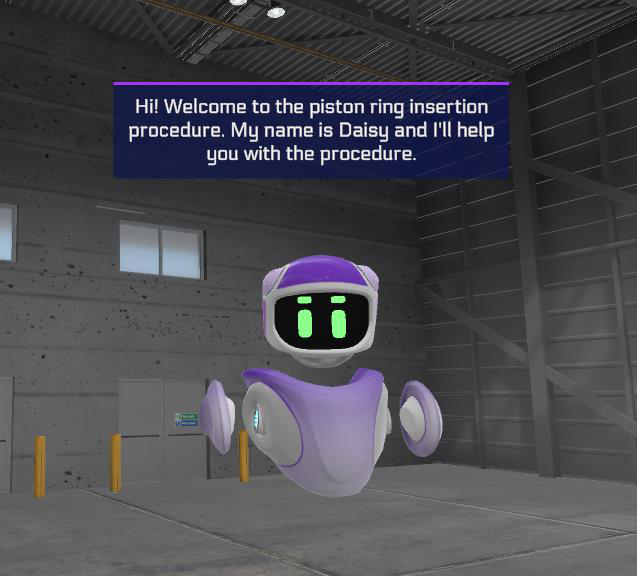
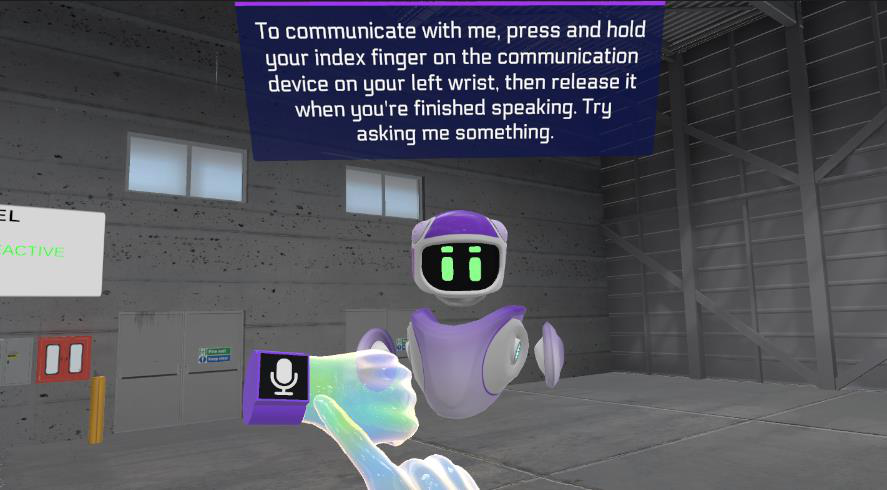
In Virtual Reality, DAISY appears in the scene as an avatar that follows the user. To talk to DAISY, the user presses and holds the index finger on the wrist communication device on the left wrist, then releases it when finished speaking.
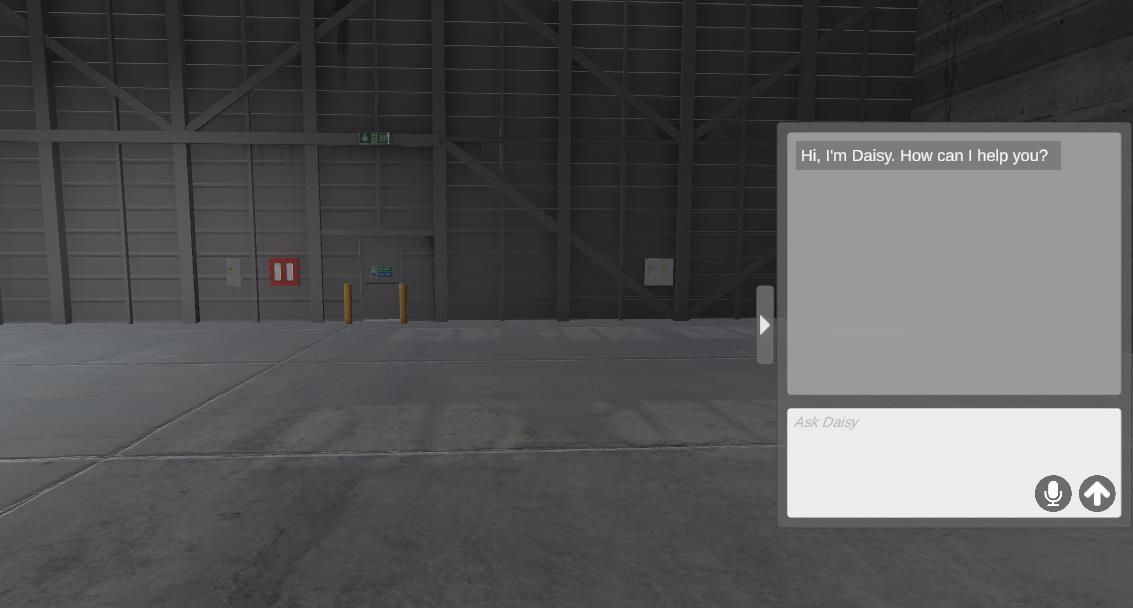
On a 2D screen (desktop), DAISY appears as a chat window.
Architecture
DAISY is split into a server side and a client side.
Server side (runs on a remote server, or on-premises):
- Speech recognition (speech to text) — GPT-4o-mini-transcribe, or Faster Whisper on-premises.
- Response generation through a ReACT agent — GPT-4.1-mini, or a local model on-premises.
- Speech synthesis (text to speech) — GPT-4o-mini-tts, or a local model on-premises.
Client side (inside the Player):
- Provides the user interface.
- Captures the user's voice through the microphone.
- Sends requests to the backend (speech recognition, response generation).
- Plays back the synthesized voice.
- Handles the commands to highlight objects in the scene and to play videos.