WEAVR AI
WEAVR AI is an assistant that lives inside the WEAVR Creator. You tell it what you want in your own words, typed or spoken, and it either answers your question or does the work for you in the procedure and in the scene.
- "Add a step where the trainee opens the maintenance hatch, then tell them to check the oil level."
- "Why doesn't step 4 ever start?"
- "Make the red lever grabbable and let it switch between up and down."
- "Here is the maintenance manual. Build a procedure from chapter 3."
- "Create a new procedure that teaches apprentices to replace the hydraulic filter."
You stay in charge: everything WEAVR AI changes is marked, can be undone, and is yours to check before a procedure is used for training.
WEAVR AI can make mistakes. It may misunderstand a request, pick the wrong object or build logic that looks right but isn't. Always test a procedure before using it for training.
What it can do
- Answer questions about your procedure, your scene and WEAVR itself: what a step does, why something doesn't work, which objects the trainee uses.
- Create new procedures with you: it asks you a few questions, creates the procedure and plans its steps (see Creating a new procedure).
- Build and change procedures: steps, actions and conditions, branches and optional tasks, spoken instructions (text-to-speech), variables, scores and errors, analytics.
- Prepare the scene: make objects grabbable, set up doors, switches, levers, buttons and sockets, add or change components, place markers and helper objects.
- Plan bigger jobs first, so you can review and adjust the plan before anything changes.
- Read your pictures and PDF files, for example a photo of a control panel or a maintenance manual.
- Test the procedure for you when you ask it to.
- Generate the voice audio of the spoken instructions it writes or changes, so the procedure isn't silent when you test it. When a speaker has no voice yet, it asks whether you want to pick one or let WEAVR AI choose.
- Keep the procedure's description and preview image up to date as the procedure grows (see Description and preview image).
Getting started
You need an OpenAI API key. OpenAI charges for each use, so ask your administrator which key to use.
-
In the Procedure Editor, click the AI button in the toolbar. You can also open WEAVR AI from the WEAVR Dashboard.

-
The first time, click Initialize WEAVR AI.
-
Paste your OpenAI API key and click Login. The key is saved only on your computer; the log out button at the top of the window removes it.
-
Read the short notice about working with an AI and click I understand. You can read it again at any time from the note under the text box.
That's it: type your first request and press Enter.
The WEAVR AI window
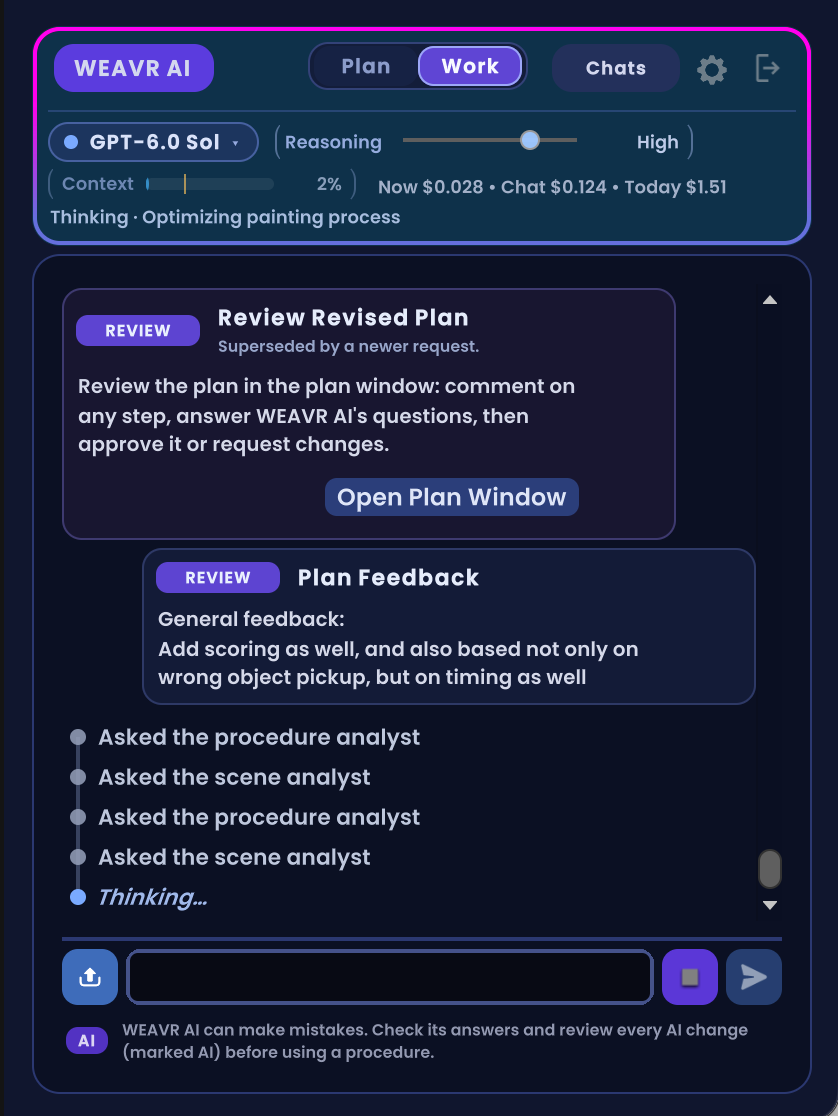
At the top
| Control | What it does |
|---|---|
| Plan / Work | Choose whether WEAVR AI plans first or gets straight to work (see below). |
| Chats | Your saved conversations for this procedure. Start a new one with + New. |
| Canvas / Dock | Show WEAVR AI inside the procedure canvas, or in its own window that you can dock anywhere. |
| Settings (gear) | Options, budgets and voice settings. |
| Log out | Removes your API key from this computer. |
Just below are the model in use (click it to switch), the Reasoning slider, the Context meter and, if you turn it on, the running cost.
At the bottom
| Button | What it does |
|---|---|
| Attach (left of the text box) | Adds pictures or PDF files to your message. |
| Microphone | Click, speak, then click again: your words are sent as your request. |
| Stop | Appears while WEAVR AI is working, in place of the microphone. Stops the current request. |
| Send | Sends your message. |
Enter sends your message, and Shift+Enter starts a new line. The up and down arrows bring back your previous messages.
While it works, WEAVR AI shows each step it takes on a timeline, so you can follow along. Click a step to see exactly what it did.
Work mode and Plan mode
- Work: WEAVR AI does what you asked right away. Best for small, clear changes.
- Plan: WEAVR AI first writes a plan and shows it in the Plan window. There you can comment on any step, answer the questions it has, then click Approve & run, or Request changes to get a revised plan. Dismiss throws the plan away without changing anything. While the approved plan runs, you can watch its progress step by step.
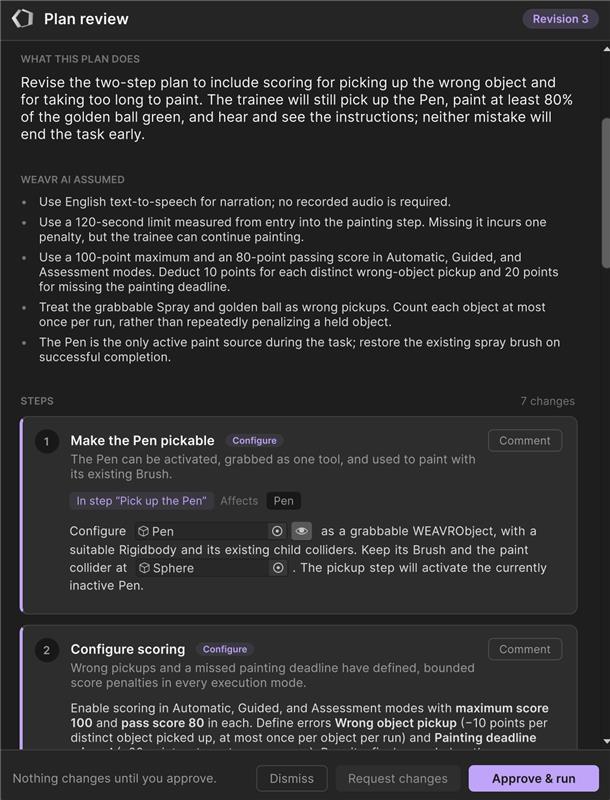
Use Plan for anything bigger than a couple of changes: a new procedure, a new section, a rework of the scoring.
Creating a new procedure
WEAVR AI can create a whole procedure with you, starting from a few sentences or a document.
-
Open the scene the procedure is for. The new procedure uses the scene that is open.
-
Start it in any of these ways:
- on the empty canvas of the Procedure Editor, click Create with WEAVR AI,
- in the menu, choose WEAVR > Procedures > New Procedure with WEAVR AI,
- in the WEAVR AI window, open Chats and click + Procedure,
- or simply ask WEAVR AI: "Create a new procedure about…".
The procedure you had open is closed (you can reopen it at any time), and a new chat starts.
-
Describe the training: what the trainee should learn and do, who they are, anything that matters. Attach a manual, a checklist or photos if you have them.
-
Answer a few questions. WEAVR AI asks only what it can't work out by itself, a few at a time, each with suggested answers. Click one, or type your own answer. If you don't know, skip it: WEAVR AI decides sensibly.
-
Check what it will create: the name, the type of procedure (Virtual Training or Operations Support), the execution modes, the languages and a short description. Then choose:
- Create it and plan the steps: the procedure is created and opens in the Procedure Editor, and WEAVR AI proposes a plan for its steps in the Plan window. Review it, answer its questions, then click Approve & run.
- Create it empty: only the procedure is created. Ask WEAVR AI to build its steps whenever you're ready.
- Or type what to change, for example "Call it Filter Change and add German".
The chat stays with the new procedure, so WEAVR AI remembers everything you told it the next time you ask for something.
Description and preview image
Every procedure has a description, the text trainees read on its page, and a preview image, the picture shown in the Player and in procedure lists. WEAVR AI looks after both for you:
- Description: WEAVR AI writes it when there is none, and rewrites it when the procedure has changed a lot, for example when steps were added or reworked. Small edits don't trigger a rewrite. If you wrote the description yourself, WEAVR AI keeps your wording and only fixes what is no longer true.
- Preview image: WEAVR AI takes a picture of the objects the procedure uses, always from the same angle, and takes a new one when they look noticeably different. Really small changes, such as a small part moving, are ignored.
- A picture you chose stays. If you set your own preview image, WEAVR AI never replaces it on its own. Ask if you want a new one: "Make a new preview image of the engine", or "Use the current Scene view as the preview".
- You can always ask for a change: "Make the description shorter and mention the torque wrench."
- A small note in the chat tells you each time the description or the preview image changed. Ctrl+Z undoes a new description.
Don't want this? Turn off Keep Description & Preview Up to Date in the settings.
When WEAVR AI needs you
Sometimes WEAVR AI stops to ask you something, for example before deleting something, or when there are several good ways to do what you asked. A small dialog shows the choices; pick one and it carries on. Tick Remember for this session to give the same answer every time it asks this again, until Unity closes.
If it needs specific objects from your scene, it shows a box where you can drag objects from the Hierarchy, then click Send.
Pictures and PDF files
Click Attach, or drag files from your computer or from the Project window onto the chat. WEAVR AI reads:
- pictures: PNG, JPEG, WEBP and GIF,
- documents: PDF.
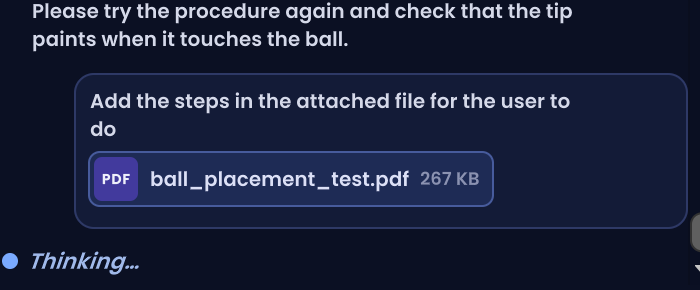
Each file can be up to 20 MB. Attached files appear above the text box: click the × to remove one, or click a file to open it.
Files stay part of the conversation, so you can keep asking about them: "What does page 12 say about the torque values?" Keep in mind that every later request in the same chat sends them again, which makes big files slower and a little more expensive. Start a new chat when you're done with a document.
Checking and undoing its work
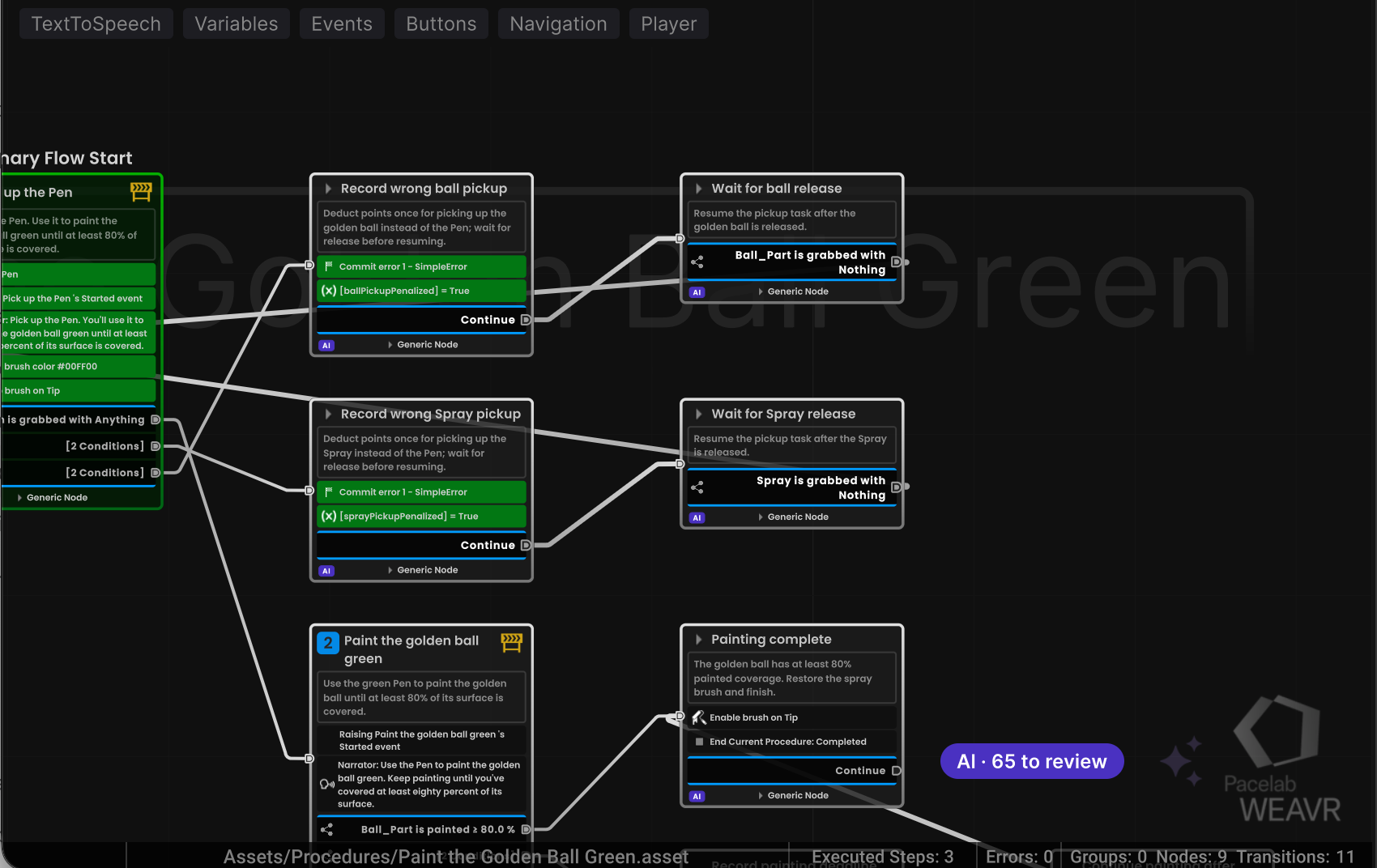
- AI badges: everything WEAVR AI creates or changes gets a small AI badge in the procedure graph, the inspectors and the Hierarchy. The Procedure View shows how many are waiting for you, for example AI · 3 to review. Click it to jump to the next one, or to mark them all as reviewed once you've checked them.
- Restore: when a request changed something, your message in the chat gets a Restore button (circular arrow). It puts the procedure and the scene back as they were before that request, and brings your text back into the box so you can rephrase it.
- Highlight: the highlight button on an answer shows the elements it changed in the Procedure View.
- Edit: if your last message got no answer (you stopped it, or something went wrong), click Edit on it to correct it and send it again.
Chats and memory
Each procedure has its own chats, saved on your computer. Within a chat, WEAVR AI remembers what it has already seen and done, so you can simply carry on: "Now do the same for the left engine."
The Context meter shows how full that memory is. When it gets close to full, WEAVR AI summarizes the older part of the chat on its own; you can also click the meter to do it now.
Costs
WEAVR AI is paid per use, through your OpenAI account. To keep an eye on it:
- Turn on Show Cost & Tokens in the settings: the window then shows what the last request cost, what this chat has cost so far and what you've spent today.
- Settings > Agent Team & Budget > Cost & Usage… shows your spending by day, chat and model.
- In the same place you can set limits: a maximum cost per request (1 USD by default), and a daily and a monthly limit. WEAVR AI stops before going over them.
Behind the scenes, WEAVR AI works as a small team: a main assistant does the thinking and editing, and cheaper helpers look things up for it (in the procedure, in the scene, among your project's assets) or set up interactions. This keeps each request as cheap as it can be.
Keeping the description and the preview image up to date costs very little: the description is rewritten by one of the cheapest models, and only when the procedure changed a lot; the preview image costs nothing. The questions for a new procedure are asked by a mid-priced helper: usually a few cents in total, more when you attach a long document.
Settings
Click the gear to open the settings.
| Section | What you'll find |
|---|---|
| Primary Settings | The model, Plan Before Execute (the same as Plan / Work), Keep Description & Preview Up to Date, Auto Scroll, Minimal Timeline (one line per step; turn it off to see every detail) and Show Cost & Tokens. |
| Agent Team & Budget | Which model each helper uses (Auto is recommended), Keep context between requests, the cost limits and Cost & Usage…. |
| Advanced | Voice: the microphone, the voice used to read answers aloud, HD Voice and Auto Speak. |
| Conversation & Tools | Clear Conversation and a few maintenance tools. |
Tips and tricks
Asking well
- Say what the trainee should do and learn, not only what to add: "The trainee removes the four screws in order. A screw removed out of order counts as an error."
- Use the names you see: step titles and object names from the Hierarchy. Or select an object in the Hierarchy or in the Scene view and say "this": WEAVR AI knows what you've selected.
- One goal per message. Build a procedure in a few rounds, structure first and details after, rather than in one giant message.
- Ask before you change: "Explain what happens after the trainee grabs the wrench." It's cheap, and it helps you decide what to ask for next.
- Ask it to check its own work: "Check the procedure for problems and fix them."
- Speak naturally. Voice works well, and small transcription mistakes are fine.
Starting a new procedure
- Start from what you have. A manual, a checklist or a few photos give WEAVR AI most of its answers, so it asks fewer questions.
- Tidy the scene first. Clear object names in the Hierarchy ("Hydraulic Filter" rather than "Mesh_042") help WEAVR AI understand what's there and name the right objects.
- Say who the trainee is and what counts as a mistake. These are the answers that shape a procedure most.
- Use "Create it empty" if you prefer to build the steps yourself, a few at a time.
Working faster
- Show, don't describe: a screenshot of a panel or a page of the manual often says more than a paragraph.
- Let it test: "Test the procedure in Guided mode." The test starts as soon as WEAVR AI has answered.
- Use Plan mode for big jobs. Fixing a plan takes seconds; fixing a finished procedure takes much longer.
When something goes wrong
- Stop early: if it heads in the wrong direction, click Stop, then use Edit or Restore and say what you really meant.
- Be concrete about what's wrong: "The door opens the wrong way, it should swing towards the trainee" works much better than "That's wrong."
- New speaker, no voice? WEAVR AI asks you: Let WEAVR AI choose, or I'll pick it myself (it opens the TextToSpeech panel, and the audio is made as soon as you pick). You can also type what you'd like, such as "a calm female voice". Tick Remember for this session so it doesn't ask again.
Saving money
- Start a new chat for a new topic. Long chats cost more per request, because WEAVR AI rereads what it remembers.
- Lower the Reasoning slider for small, obvious edits, and raise it for tricky logic.
- Turn off "Keep context between requests" (in Agent Team & Budget) if you make many small, unrelated changes. Each request then starts fresh and costs less, but WEAVR AI may need to look things up again.
- Set a daily or monthly limit so there are no surprises.
Before you publish
- Review every AI badge. Use the AI · to review chip in the Procedure View to go through them one by one.
- Play the procedure yourself from start to finish, at least once in each execution mode you use.
Good to know
- What is sent to OpenAI: your messages, the files you attach, the current procedure and the parts of the scene that matter for your request. Your voice is turned into text on your computer, and only the text is sent. Don't include personal or confidential information you aren't allowed to share.
- You need an internet connection to use WEAVR AI.
- Chats are stored on your computer, not in the project, so colleagues don't see them.
- AI models change quickly. The models on offer, and small details of the window, may change between WEAVR releases.