Camera Manager
Go to WEAVR > Utilities > Camera Manager.
The Camera Manager wizard allows users to manage (list, check, create, or remove) camera positions to use them later in the Procedure Editor window. The poses of Virtual Cameras are used as objects of the Move Camera action.
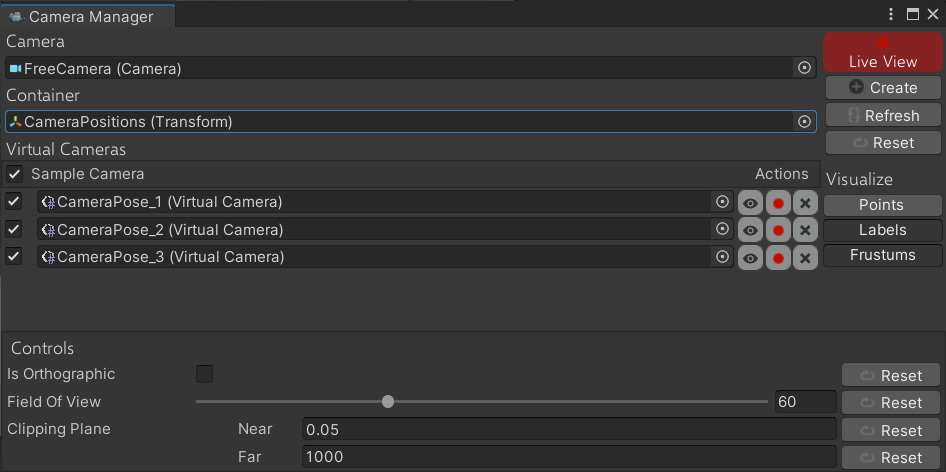
| Property | Function |
|---|---|
| Camera | Define the camera that is used during the procedure. |
| Container | Define the folder in the hierarchy where Virtual Cameras will be created as child objects. Only one per scene. Show All = when the field is empty, and a folder in the Hierarchy containing Virtual Camera exists, it references it as container folder. |
| Live View | Visualizes camera settings and actions. |
| Create | Creates a Virtual Camera with the current scene view and the referred Camera Pose in the Hierarchy window. To enable the button, click the Live View button. |
| Refresh | Refreshes the Virtual Camera List. |
| Reset | Resets selected virtual cameras to their initial scene views. |
| Virtual Cameras | List of all the virtual camera inside the scene. = view the scene as it is seen by the Virtual Camera. = save the new position of the Virtual Camera in the scene. = delete the current Virtual Camera. |
| Visualize | Visualizes points, labels, or frustums in the camera scene and preview. Points = center point of the virtual camera view. Labels = camera label. Frustum = near and far properties of the Clipping Plane setting together with the planes that are defined by the Field of View of the camera. |
| Controls | Configure settings that refer to all Virtual Cameras to be created. |
| Is Orthographic | If enabled, the Virtual Camera view is orthographic (camera renders objects uniformly with no sense of perspective). |
| Size | View the angle of an orthographic camera. The orthographic size is half the size of the vertical viewing volume. |
| Field Of View | Define the width of the Camera's view angle, measured in degrees along the local Y axis. |
| Clipping Plane | Define the distance from the camera to the start (Near) and stop (Far) rendering. |
note
After creation, you can modify these settings later in the Virtual Camera component of the created Camera Pose in the Hierarchy.